Are you new to WordPress and not sure how to install and configure plugins? Fear not! In this article, we will guide you through the process step-by-step.
What are WordPress plugins?
Before diving into the installation process, let’s first understand what WordPress plugins are. In simple terms, WordPress plugins are pieces of code that can be installed on your WordPress site to add new features and functionality.
Plugins can range from simple ones that add a contact form to your site, to complex ones that create an online store. There are over 50,000 free and paid plugins available on the WordPress repository, making it easy to find one that suits your needs.
How to install a WordPress plugin
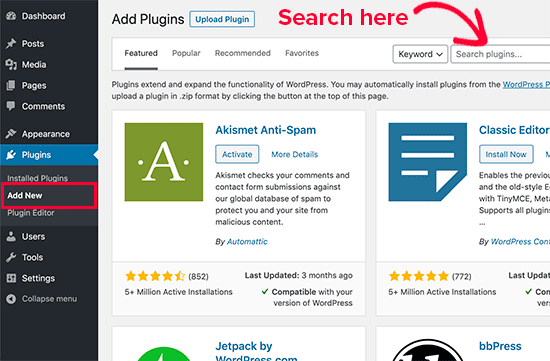
Installing a WordPress plugin is a straightforward process that can be done in a few clicks. Here’s how:
- Log in to your WordPress dashboard
- Click on “Plugins” on the left-hand menu
- Click on “Add New”
- Use the search bar to find the plugin you want to install
- Click on “Install Now”
- Wait for the installation to complete
- Click on “Activate” to enable the plugin on your site
Congratulations! You have successfully installed a WordPress plugin.
How to configure a WordPress plugin
Once you have installed a plugin, you may need to configure it to suit your needs. The configuration process can vary depending on the plugin you are using, but here are some general steps:
- Go to the plugin settings page
- Read the instructions carefully
- Adjust the settings according to your requirements
- Save the changes
It is essential to note that some plugins may not have a settings page, and their functionality will be enabled as soon as you activate them.
Best practices when installing and configuring WordPress plugins
While installing and configuring plugins is a straightforward process, there are a few things you should keep in mind to ensure that your site remains secure and performs optimally.
- Only install plugins from reputable sources. The WordPress repository is a safe place to find plugins, but be wary of third-party sites that offer plugins for free. They may contain malware that can harm your site.
- Only install plugins that you need. Installing too many plugins can slow down your site and make it difficult to manage.
- Keep your plugins up-to-date. Developers release updates to fix bugs and improve performance, so make sure you update your plugins regularly.
- Regularly review the plugins you have installed. If you are not using a plugin, remove it from your site.
Conclusion
In conclusion, installing and configuring WordPress plugins is an easy process that can add a lot of functionality to your site. However, it is crucial to follow best practices to ensure that your site remains secure and performs optimally. If you have any questions or need further assistance, don’t hesitate to reach out to WordPress support or consult the WordPress documentation. Happy plugin-in!
