Are you new to WordPress and feeling overwhelmed by the thought of creating and managing pages and posts? Fear not, as we’ve got you covered! In this blog post, we’ll take you through the entire process of creating and managing pages and posts on WordPress.
Getting Started
Before we dive into creating pages and posts, let’s understand what they are and what makes them different.
Pages
Pages are static content that are used to display information that doesn’t change frequently, such as your About Us, Contact Us, or Services page.
Posts
Posts, on the other hand, are dynamic content that are used to display information that changes frequently, such as blog articles, news updates, or product reviews.
Now that we know the difference between pages and posts, let’s move on to creating them.
Creating Pages
Creating pages on WordPress is a simple process. Follow these steps to create a new page:
- Log in to your WordPress account and navigate to the “Pages” section.
- Click on the “Add New” button.
- Enter a title for your page and add your content.
- Add any media files such as images or videos if necessary.
- Preview your page and click “Publish” to make it live.
Congratulations, you’ve just created your first page on WordPress!
Managing Pages
Managing pages is just as easy as creating them. Follow these steps to manage your pages:
- Log in to your WordPress account and navigate to the “Pages” section.
- You’ll see a list of all your pages. Hover over the page you want to edit and click “Edit”.
- Make the necessary changes to your page and preview it before publishing it again.
- If you want to delete a page, hover over it and click “Move to Trash”.
Creating Posts
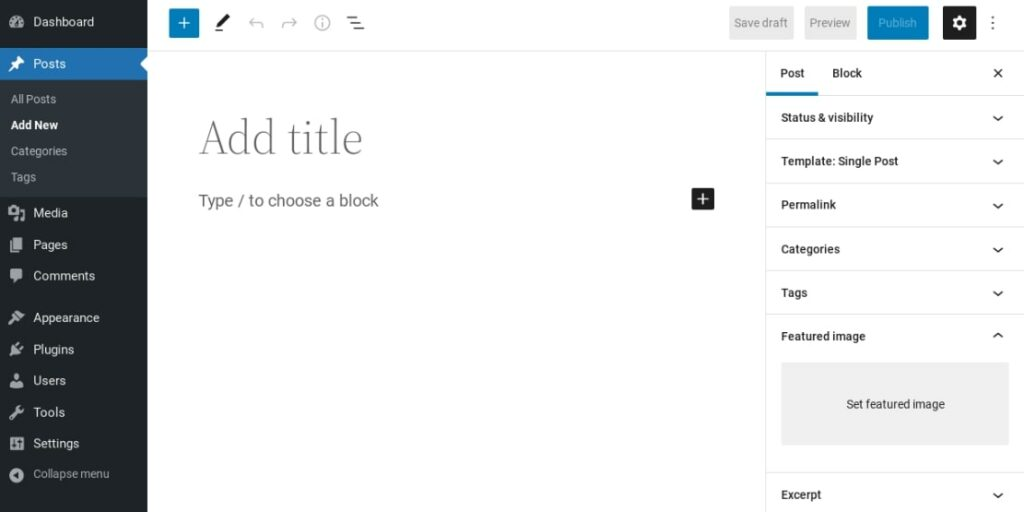
Creating posts on WordPress is also a straightforward process. Follow these steps to create a new post:
- Log in to your WordPress account and navigate to the “Posts” section.
- Click on the “Add New” button.
- Enter a title for your post and add your content.
- Add any media files such as images or videos if necessary.
- Preview your post and click “Publish” to make it live.
Congratulations, you’ve just created your first post on WordPress!
Managing Posts
Managing posts is similar to managing pages. Follow these steps to manage your posts:
- Log in to your WordPress account and navigate to the “Posts” section.
- You’ll see a list of all your posts. Hover over the post you want to edit and click “Edit”.
- Make the necessary changes to your post and preview it before publishing it again.
- If you want to delete a post, hover over it and click “Move to Trash”.
Conclusion
Creating and managing pages and posts on WordPress is a breeze once you know how to do it. We hope this guide has been helpful to you. Remember to keep your content fresh and engaging for your readers. Happy creating!
