Setting up and managing certifications in Open edX allows you to award certificates to learners who successfully complete your course. Open edX provides built-in support for generating and managing certificates. Here’s a step-by-step guide to setting up and managing certifications:
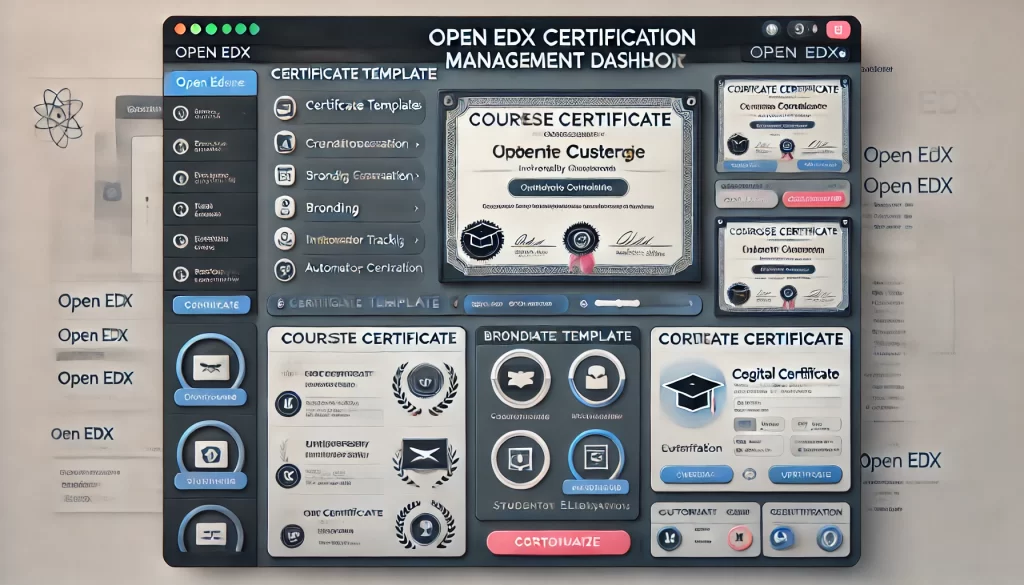
1. Enable Certificates in Your Course
Before you can issue certificates, you need to enable the certificate feature in your course:
- Access Studio:
- Log in to Open edX Studio.
- Navigate to the course where you want to enable certificates.
2. Enable Certificates:
- Go to Settings > Advanced Settings.
- Locate the
Certificate Configurationfield. - Add the following JSON configuration to enable certificates:
json { "enabled": true, "certificates_display_behavior": "end", "certificate_available_date": null, "certificates_show_before_end": false } - Save your changes.
2. Configure Certificate Settings
Customize the certificate settings to suit your course requirements:
- Access Certificate Settings:
- In Studio, go to Settings > Schedule & Details.
2. Set Certificate Availability:
- Specify when certificates should be available (e.g., after the course end date or immediately upon completion).
3. Configure Certificate Display Behavior:
- Choose whether certificates should be displayed at the end of the course or after a specific date.
3. Design the Certificate Template
Open edX allows you to customize the design of the certificates:
- Access the Certificate Template:
- Log in to the LMS as an administrator.
- Navigate to Admin > Certificates > Certificate Templates.
2. Create or Edit a Template:
- Click Add Certificate Template or edit an existing one.
- Configure the following fields:
- Template Name: Provide a name for the template.
- Organization: Specify the organization issuing the certificate.
- Course Key: Enter the course key for which the certificate is issued.
- Certificate HTML: Customize the HTML template for the certificate.
- Certificate CSS: Add custom CSS for styling the certificate.
3. Save the Template:
- Save your changes and ensure the template is associated with the correct course.
4. Set Up Certificate Generation
Certificates can be generated automatically or manually:
- Automatic Generation:
- Certificates are automatically generated for learners who meet the course completion criteria.
- Ensure the course grading policy is properly configured to determine who qualifies for a certificate.
2. Manual Generation:
- Log in to the LMS as an administrator.
- Navigate to Instructor Dashboard > Certificates.
- Use the Generate Certificates option to manually generate certificates for specific learners.
5. Manage Certificates
Once certificates are generated, you can manage them through the LMS:
- View Certificates:
- Go to Instructor Dashboard > Certificates.
- View a list of learners who have been issued certificates.
2. Regenerate Certificates:
- If needed, you can regenerate certificates for learners (e.g., if there was an error in the original certificate).
3. Revoke Certificates:
- In rare cases, you may need to revoke a certificate. Use the Revoke Certificates option in the Instructor Dashboard.
6. Notify Learners About Certificates
Learners are typically notified via email when their certificate is ready. Ensure email notifications are enabled:
- Check Email Settings:
- Go to Admin > Email and ensure email notifications are configured.
2. Customize Email Content:
- Customize the certificate email template if needed.
7. Verify Certificates
Learners and third parties can verify the authenticity of certificates:
- Certificate Verification Page:
- Open edX provides a certificate verification page where anyone can verify a certificate by entering the certificate ID.
2. Share Verification Link:
- Include the verification link in your course materials or communications.
8. Best Practices for Managing Certificates
- Test Certificates: Before launching the course, test the certificate generation process to ensure everything works as expected.
- Monitor Compliance: Ensure certificates are issued only to learners who meet the course requirements.
- Update Templates: Periodically review and update certificate templates to reflect any changes in branding or course details.
