$100 Website Offer

Get your personal website + domain for just $100.

Limited Time Offer!

Claim Your Website Now

How to set up and manage assessments and quizzes in Open edX?

Open edX is a key part of creating an engaging and effective learning experience. Open edX provides a variety of tools to create, configure, and manage assessments, including quizzes, exams, and peer assessments. Below is a step-by-step guide to setting up and managing assessments and quizzes in Open edX.
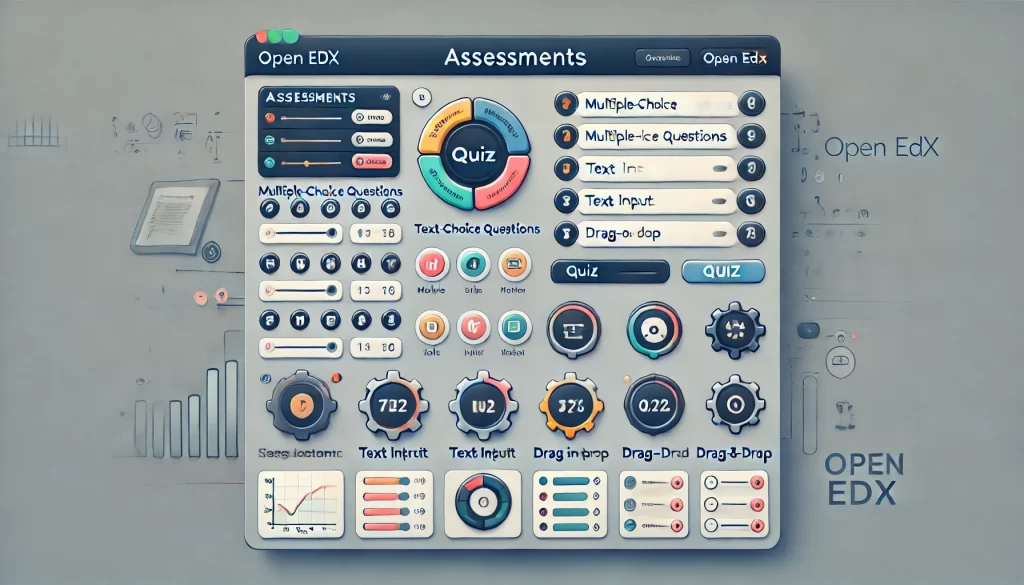

Step 1: Access Open edX Studio

  1. Log in to Studio:
  • Navigate to your Open edX Studio instance (e.g., https://<your-domain>:8001).
  • Log in using your instructor or admin credentials.

2. Open Your Course:

    • Select the course where you want to create assessments.

    Step 2: Create Assessments

    Assessments are added to Units within Subsections. Follow these steps to create assessments:

    1. Navigate to the Course Outline:
    • In Studio, go to the Course Outline tab.

    2. Add a Subsection:

      • Create a new subsection (e.g., “Quiz 1”) or use an existing one.

      3. Add a Unit:

        • Inside the subsection, add a new unit (e.g., “Multiple Choice Questions”).

        4. Add Assessment Components:

          • Click Add Component in the unit to add different types of assessments:
            • Problem: For quizzes and interactive questions.
            • Discussion: For discussion-based assessments.
            • Advanced: For custom components like XBlocks.

          Step 3: Configure Quizzes and Problems

          Open edX supports a variety of problem types for quizzes. Here’s how to configure them:

          1. Multiple Choice:
          • Select Problem > Multiple Choice.
          • Enter the question and answer options.
          • Specify the correct answer(s) and provide feedback.

          2. Checkboxes:

            • Select Problem > Checkboxes.
            • Allow learners to select multiple correct answers.

            3. Dropdown:

              • Select Problem > Dropdown.
              • Provide a dropdown menu for learners to select the correct answer.

              4. Numerical Input:

                • Select Problem > Numerical Input.
                • Specify the correct answer and tolerance range.

                5. Text Input:

                  • Select Problem > Text Input.
                  • Define the correct answer and matching rules (exact or regex).

                  6. Math Expression Input:

                    • Select Problem > Math Expression Input.
                    • Use a math engine to evaluate mathematical expressions.

                    7. Drag and Drop:

                      • Select Problem > Drag and Drop.
                      • Create interactive drag-and-drop activities.

                      8. Custom JavaScript Problems:

                        • Use Advanced > Custom JavaScript to create custom interactive problems.

                        Step 4: Set Up Grading

                        1. Configure Grading Policy:
                        • Go to the Settings tab in Studio.
                        • Under Grading, configure the grading policy:
                          • Assign weights to different types of assessments (e.g., quizzes, exams, assignments).
                          • Set the passing score for the course.

                        2. Grade Individual Problems:

                          • Each problem can be assigned a point value.
                          • Specify whether partial credit is allowed for multi-part questions.

                          Step 5: Publish Assessments

                          1. Publish Content:
                          • After creating assessments, click Publish to make them visible to learners.
                          • Ensure all units, subsections, and sections are published.

                          2. Preview Assessments:

                            • Use the Preview button to test how assessments will appear to learners.

                            Step 6: Manage Assessments

                            1. Monitor Submissions:
                            • Use the Instructor Dashboard in the LMS to track learner submissions and grades.
                            • Navigate to Instructor > Student Admin > View Gradebook.

                            2. Regrade Assessments:

                              • If needed, regrade assessments from the Instructor Dashboard:
                                • Go to Instructor > Data Download > Grading Configuration.
                                • Upload a CSV file with updated grades.

                              3. Provide Feedback:

                                • Add feedback to individual submissions to help learners improve.

                                Step 7: Advanced Assessment Features

                                1. Timed Exams:
                                • Set time limits for exams or quizzes:
                                  • In Studio, go to the Settings tab.
                                  • Enable Timed Exams and specify the time limit.

                                2. Proctored Exams:

                                  • Enable proctoring to ensure academic integrity:
                                    • Integrate with a proctoring service (e.g., ProctorU, Examity).
                                    • Configure proctoring settings in the Instructor Dashboard.

                                  3. Peer Assessments:

                                    • Set up peer assessments for assignments:
                                      • In Studio, add a Peer Assessment component.
                                      • Define the rubric and grading criteria.

                                    4. Self-Assessments:

                                      • Allow learners to evaluate their own work:
                                        • Add a Self-Assessment component in Studio.

                                      Step 8: Analyze Assessment Data

                                      1. View Analytics:
                                      • Use the Instructor Dashboard to analyze learner performance:
                                        • Navigate to Instructor > Data Download > Problem Grade Report.

                                      2. Export Data:

                                        • Export assessment data (e.g., grades, submissions) for further analysis:
                                          • Go to Instructor > Data Download and download the relevant reports.

                                        Step 9: Best Practices for Assessments

                                        • Align Assessments with Learning Objectives:
                                        • Ensure assessments measure the intended learning outcomes.
                                        • Use a Variety of Question Types:
                                        • Mix multiple-choice, text input, and interactive problems to engage learners.
                                        • Provide Clear Instructions:
                                        • Include detailed instructions for each assessment.
                                        • Test Assessments:
                                        • Preview and test all assessments before publishing.
                                        • Offer Feedback:
                                        • Provide constructive feedback to help learners improve.

                                        Related Posts

                                        The Comprehensive Blueprint for Free Vehicle Rental Management Software

                                        Introduction The growth of the global vehicle rental industry has been fueled by a shift in consumer behavior toward the sharing economy. As travel demands rise and…

                                        Read More

                                        Comparing the World’s Best Heart Surgery Hospitals and Clinical Teams

                                        Introduction The Growing Burden of Cardiovascular Diseases Cardiovascular diseases (CVDs) remain the leading cause of mortality globally, placing an unprecedented burden on healthcare delivery systems. Ischemic heart…

                                        Read More

                                        Affordable Website Design for Growing Companies: The Complete Strategic Guide

                                        Introduction In the digital landscape, a website serves as a company’s modern storefront, primary lead generator, and foundational brand asset. For growing companies, startups, and small businesses,…

                                        Read More

                                        The Ultimate Guide to a User-Friendly and Mobile-Ready Business Website

                                        Introduction A corporate website is no longer just a passive digital brochure; it functions as your primary storefront, lead generator, and brand ambassador. Over 60% of all…

                                        Read More

                                        Best Places to Visit in Goa: The Ultimate Travel Guide to Beaches, Nightlife & Itineraries

                                        Introduction Finding the best places to visit in Goa means opening the door to a paradise that seamlessly blends laid-back coastal living with high-octane excitement. Whether you…

                                        Read More

                                        Best Countries for Plastic Surgery: Top Global Cosmetic Hospitals, Surgeons, and Costs

                                        Introduction Deciding to undergo an aesthetic procedure is a deeply personal journey, and finding the best cosmetic hospitals in the world is the critical first step toward…

                                        Read More
                                        Subscribe
                                        Notify of
                                        guest
                                        0 Comments
                                        Oldest
                                        Newest Most Voted
                                        Inline Feedbacks
                                        View all comments
                                        0
                                        Would love your thoughts, please comment.x
                                        ()
                                        x