$100 Website Offer

Get your personal website + domain for just $100.

Limited Time Offer!

Claim Your Website Now

How to set up and manage assessments and quizzes in Open edX?

Open edX is a key part of creating an engaging and effective learning experience. Open edX provides a variety of tools to create, configure, and manage assessments, including quizzes, exams, and peer assessments. Below is a step-by-step guide to setting up and managing assessments and quizzes in Open edX.
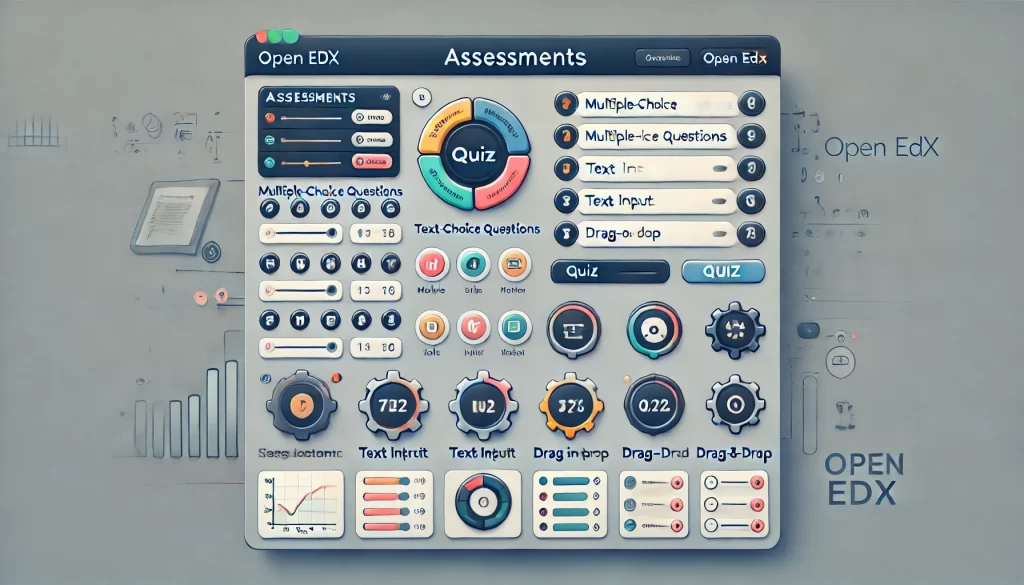

Step 1: Access Open edX Studio

  1. Log in to Studio:
  • Navigate to your Open edX Studio instance (e.g., https://<your-domain>:8001).
  • Log in using your instructor or admin credentials.

2. Open Your Course:

    • Select the course where you want to create assessments.

    Step 2: Create Assessments

    Assessments are added to Units within Subsections. Follow these steps to create assessments:

    1. Navigate to the Course Outline:
    • In Studio, go to the Course Outline tab.

    2. Add a Subsection:

      • Create a new subsection (e.g., “Quiz 1”) or use an existing one.

      3. Add a Unit:

        • Inside the subsection, add a new unit (e.g., “Multiple Choice Questions”).

        4. Add Assessment Components:

          • Click Add Component in the unit to add different types of assessments:
            • Problem: For quizzes and interactive questions.
            • Discussion: For discussion-based assessments.
            • Advanced: For custom components like XBlocks.

          Step 3: Configure Quizzes and Problems

          Open edX supports a variety of problem types for quizzes. Here’s how to configure them:

          1. Multiple Choice:
          • Select Problem > Multiple Choice.
          • Enter the question and answer options.
          • Specify the correct answer(s) and provide feedback.

          2. Checkboxes:

            • Select Problem > Checkboxes.
            • Allow learners to select multiple correct answers.

            3. Dropdown:

              • Select Problem > Dropdown.
              • Provide a dropdown menu for learners to select the correct answer.

              4. Numerical Input:

                • Select Problem > Numerical Input.
                • Specify the correct answer and tolerance range.

                5. Text Input:

                  • Select Problem > Text Input.
                  • Define the correct answer and matching rules (exact or regex).

                  6. Math Expression Input:

                    • Select Problem > Math Expression Input.
                    • Use a math engine to evaluate mathematical expressions.

                    7. Drag and Drop:

                      • Select Problem > Drag and Drop.
                      • Create interactive drag-and-drop activities.

                      8. Custom JavaScript Problems:

                        • Use Advanced > Custom JavaScript to create custom interactive problems.

                        Step 4: Set Up Grading

                        1. Configure Grading Policy:
                        • Go to the Settings tab in Studio.
                        • Under Grading, configure the grading policy:
                          • Assign weights to different types of assessments (e.g., quizzes, exams, assignments).
                          • Set the passing score for the course.

                        2. Grade Individual Problems:

                          • Each problem can be assigned a point value.
                          • Specify whether partial credit is allowed for multi-part questions.

                          Step 5: Publish Assessments

                          1. Publish Content:
                          • After creating assessments, click Publish to make them visible to learners.
                          • Ensure all units, subsections, and sections are published.

                          2. Preview Assessments:

                            • Use the Preview button to test how assessments will appear to learners.

                            Step 6: Manage Assessments

                            1. Monitor Submissions:
                            • Use the Instructor Dashboard in the LMS to track learner submissions and grades.
                            • Navigate to Instructor > Student Admin > View Gradebook.

                            2. Regrade Assessments:

                              • If needed, regrade assessments from the Instructor Dashboard:
                                • Go to Instructor > Data Download > Grading Configuration.
                                • Upload a CSV file with updated grades.

                              3. Provide Feedback:

                                • Add feedback to individual submissions to help learners improve.

                                Step 7: Advanced Assessment Features

                                1. Timed Exams:
                                • Set time limits for exams or quizzes:
                                  • In Studio, go to the Settings tab.
                                  • Enable Timed Exams and specify the time limit.

                                2. Proctored Exams:

                                  • Enable proctoring to ensure academic integrity:
                                    • Integrate with a proctoring service (e.g., ProctorU, Examity).
                                    • Configure proctoring settings in the Instructor Dashboard.

                                  3. Peer Assessments:

                                    • Set up peer assessments for assignments:
                                      • In Studio, add a Peer Assessment component.
                                      • Define the rubric and grading criteria.

                                    4. Self-Assessments:

                                      • Allow learners to evaluate their own work:
                                        • Add a Self-Assessment component in Studio.

                                      Step 8: Analyze Assessment Data

                                      1. View Analytics:
                                      • Use the Instructor Dashboard to analyze learner performance:
                                        • Navigate to Instructor > Data Download > Problem Grade Report.

                                      2. Export Data:

                                        • Export assessment data (e.g., grades, submissions) for further analysis:
                                          • Go to Instructor > Data Download and download the relevant reports.

                                        Step 9: Best Practices for Assessments

                                        • Align Assessments with Learning Objectives:
                                        • Ensure assessments measure the intended learning outcomes.
                                        • Use a Variety of Question Types:
                                        • Mix multiple-choice, text input, and interactive problems to engage learners.
                                        • Provide Clear Instructions:
                                        • Include detailed instructions for each assessment.
                                        • Test Assessments:
                                        • Preview and test all assessments before publishing.
                                        • Offer Feedback:
                                        • Provide constructive feedback to help learners improve.

                                        Related Posts

                                        CMS Website Development Checklist: A Step-by-Step Guide for Business Owners

                                        Introduction Your website is the digital headquarters of your business. It operates as your 24/7 sales representative, your primary marketing asset, and the first point of contact…

                                        Read More

                                        How to Choose the Right CMS for Your Business Website

                                        Introduction A website serves as the digital engine of a modern business, but the software powering it determines how fast, secure, and adaptable that engine truly is….

                                        Read More

                                        Common CMS Website Mistakes and How to Avoid Them

                                        Introduction A Content Management System (CMS) offers an accessible way to build, manage, and update a website without needing to write code from scratch. Because platforms like…

                                        Read More

                                        The Amaravati Discovery Guide: Sightseeing and Local Events

                                        Introduction Amaravati is a destination where thousands of years of history, profound spiritual heritage, and evolving modern regional dynamics intersect. Situated along the southern banks of the…

                                        Read More

                                        Navigating DataOps Courses, Certifications, and Professional Services

                                        Introduction Modern organizations rely on fast, accurate, and accessible data to drive operations, customer experiences, and strategic decisions. Yet, as data volumes grow and data architectures expand…

                                        Read More

                                        Integrating AI Software Development with Cloud and DevOps Pipelines

                                        Introduction Modern software engineering has moved far beyond traditional application coding and routine deployments. Organizations across industries are racing to build intelligent, cloud-native platforms capable of processing…

                                        Read More
                                        Subscribe
                                        Notify of
                                        guest
                                        0 Comments
                                        Oldest
                                        Newest Most Voted
                                        Inline Feedbacks
                                        View all comments
                                        0
                                        Would love your thoughts, please comment.x
                                        ()
                                        x