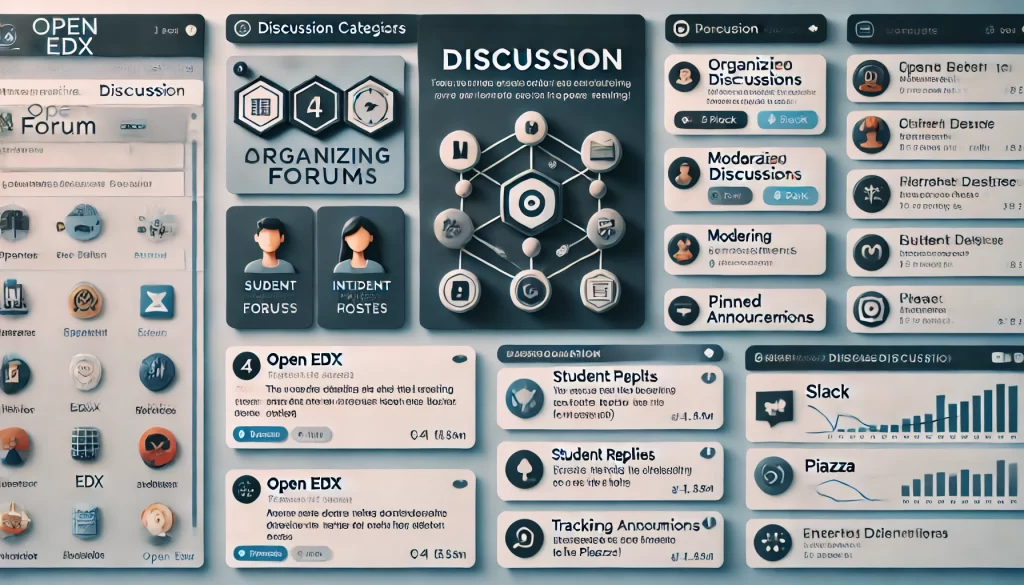
Creating and managing discussion forums in Open edX is a powerful way to foster student engagement and collaboration. Open edX provides built-in support for discussion forums through its Discussion Component and Discussion XBlock. Here’s a step-by-step guide to creating and managing discussion forums in Open edX
1. Enable Discussions in Your Course
Before creating discussion forums, ensure that discussions are enabled for your course:
- Access Studio:
- Log in to Open edX Studio.
- Navigate to the course where you want to enable discussions.
2. Enable Discussions:
- Go to Settings > Advanced Settings.
- Locate the
Discussion Topic Mappingfield. - Add a JSON configuration to enable discussions. For example:
json { "General": { "id": "general" } } - Save your changes.
3. Enable Discussion Tab:
- Go to Settings > Advanced Settings.
- Locate the
Enable Timed Examsfield and ensure it is set tofalse. - Locate the
Enable Course Discussionfield and set it totrue.
2. Create Discussion Components in Course Content
You can add discussion components directly to your course units:
- Navigate to the Course Outline:
- In Studio, go to the course outline and select the unit where you want to add a discussion.
2. Add a Discussion Component:
- Click Add Component and select Discussion.
- Configure the discussion component:
- Display Name: Provide a name for the discussion (e.g., “Week 1 Discussion”).
- Discussion ID: Use a unique identifier for the discussion (e.g.,
week1_discussion). - Discussion Category: Assign a category (e.g., “General”).
- Subcategory: Optionally, add a subcategory (e.g., “Introductions”).
- Save the component.
3. Publish the Unit:
- After adding the discussion component, publish the unit to make it available to learners.
3. Manage Discussion Forums
Once discussions are enabled and added to your course, you can manage them through the Instructor Dashboard or directly in the course:
- Access the Instructor Dashboard:
- Log in to the LMS as an instructor or course staff.
- Navigate to the course and click Instructor > Instructor Dashboard.
2. Manage Discussions:
- Go to the Discussion Management section.
- Here, you can:
- View all discussion threads.
- Moderate posts (edit, delete, or pin posts).
- Assign discussion moderators or teaching assistants.
- Monitor student participation.
3. Encourage Participation:
- Post prompts or questions to guide discussions.
- Respond to student posts to keep the conversation active.
- Use announcements to remind students about ongoing discussions.
4. Configure Advanced Discussion Settings
For more control over discussions, you can configure advanced settings:
- Access Advanced Settings:
- In Studio, go to Settings > Advanced Settings.
2. Configure Discussion Settings:
- Discussion Blackout Dates: Set dates when discussions are unavailable.
- Discussion Visibility: Control whether discussions are visible to all learners or specific groups.
- Graded Discussions: Enable grading for discussions if you want to assess participation.
5. Use Cohorts for Group Discussions
If your course uses cohorts, you can create cohort-specific discussions:
- Enable Cohorts:
- Go to Settings > Advanced Settings.
- Set
Enable Cohortstotrue.
2. Create Cohort-Specific Discussions:
- When adding a discussion component, specify the cohort in the Group Access settings.
6. Monitor and Analyze Discussion Activity
Use the Instructor Dashboard and Analytics to monitor discussion activity:
- View Discussion Metrics:
- Go to the Instructor Dashboard > Data Download.
- Download discussion participation data.
2. Use Insights:
- Analyze participation trends to identify active or inactive learners.
- Use this data to improve engagement strategies.
7. Best Practices for Managing Discussions
- Set Clear Guidelines: Provide instructions on how students should participate in discussions.
- Encourage Respectful Communication: Foster a positive and inclusive discussion environment.
- Regularly Engage: Actively participate in discussions to keep students motivated.
- Use Graded Discussions: If applicable, grade discussions to incentivize participation.
By following these steps, you can effectively create, manage, and optimize discussion forums in Open edX, enhancing student interaction and learning outcomes.
