Using fof/oauth
To configure Google Login in Flarum using the FoF OAuth extension, follow the step-by-step instructions below. This guide assumes that you have already installed the FoF OAuth extension and have access to the Google Developer Console to create OAuth credentials.
Step 1: Install the FoF OAuth Extension
If you haven’t already installed the FoF OAuth extension, you can do so via Composer.
- SSH into your server where Flarum is installed and navigate to the Flarum root directory.
- Run the following command to install the FoF OAuth extension:
Run the following command to install the FoF OAuth extension:
composer require fof/oauthOnce the installation is complete, clear Flarum’s cache:
php flarum cache:clear- Go to your Flarum Admin Panel (
https://yourdomain.com/admin), navigate to the Extensions tab, and enable the FoF OAuth extension.
Step 2: Create Google OAuth Credentials
You need to create Google OAuth 2.0 credentials for your Flarum forum to enable Google login.
- Go to the Google API Console:
- Visit the Google Cloud Console.
- Log in with your Google account.
- Create a new project:
- In the top-right corner, click the Project dropdown and select New Project.
- Give your project a name (e.g., “Flarum Google Login”) and click Create.
- Enable the OAuth API:
- In the API Library, search for “Google Identity Platform”.
- Click Enable.
- Configure the OAuth Consent Screen:
- Go to APIs & Services > OAuth Consent Screen on the left sidebar.
- Choose External as the user type and click Create.
- Fill out the required fields, such as App name, User support email, and your developer contact email.
- Add scopes such as
emailandprofile, which are needed to authenticate users. - Save the configuration.
- Create OAuth 2.0 Credentials:
- Go to APIs & Services > Credentials, then click Create Credentials and choose OAuth 2.0 Client IDs.
- Set the Application Type to Web Application.
- In Authorized redirect URIs, add the following URL (replace
yourdomain.comwith your actual domain):https://yourdomain.com/auth/google/callback - Click Create and note down the Client ID and Client Secret that you receive, as you’ll need them for the next step.
Step 3: Configure Google Login in Flarum
Configure Google OAuth:
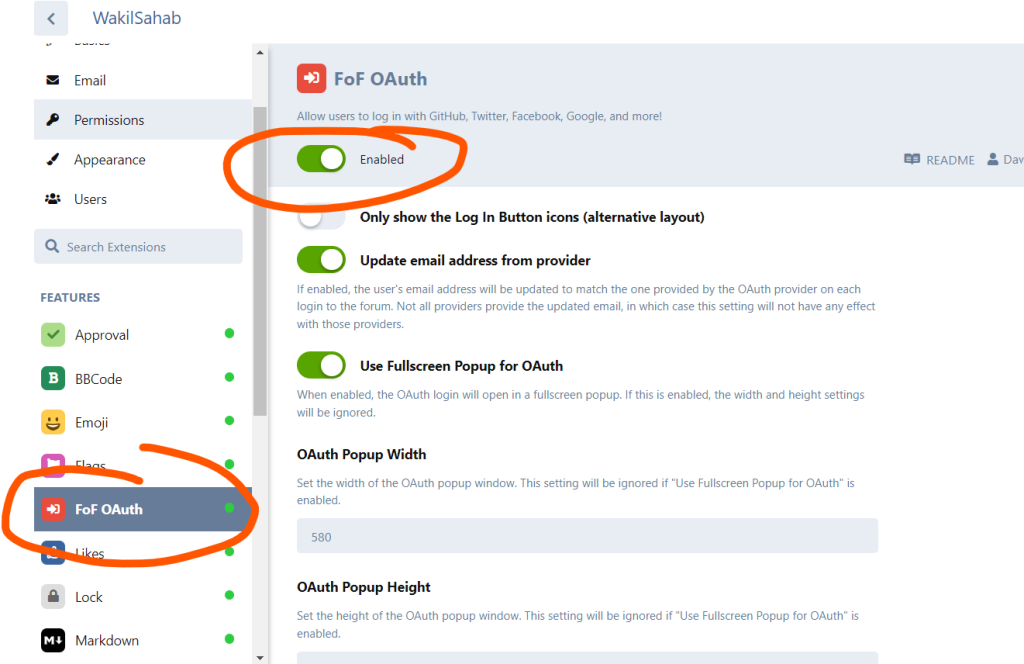
- After installing the extension, go to your Flarum Admin Panel (
https://yourdomain.com/admin). - Navigate to Extensions, find the FoF OAuth extension, and enable it.
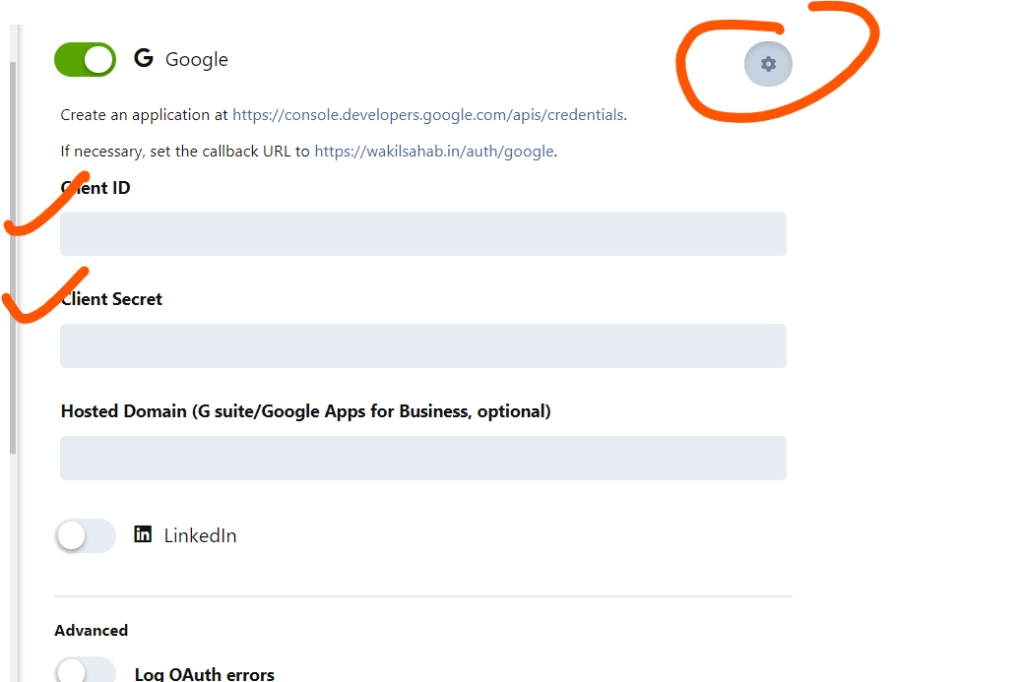
- Configure the OAuth credentials by going to Settings > Login Providers > Google OAuth and entering the Client ID and Client Secret you generated earlier from the Google Developer Console.
- Go to your Flarum Admin Panel:
- Log in as an admin and navigate to the Settings page.
- Find the OAuth Providers Section:
- Scroll down to the Login Providers section.
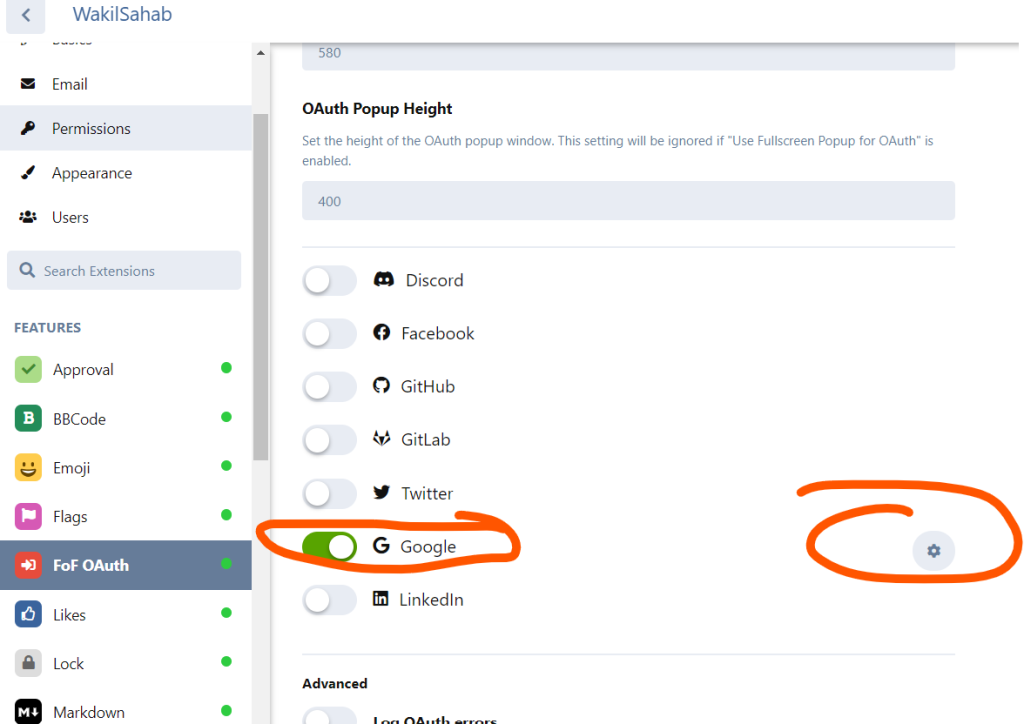
- You should see the Google OAuth option provided by the FoF OAuth extension.
- Enter the Google OAuth Credentials:
- Enter the Client ID and Client Secret you obtained from the Google Developer Console in the respective fields.
- For the Redirect URL, it should be pre-configured as
https://yourdomain.com/auth/google/callback.
- Save the Changes:
- Click Save to apply the changes.
Step 4: Test the Google Login Integration
- Visit your Flarum Forum:
- Go to your forum’s homepage (
https://yourdomain.com).
- Go to your forum’s homepage (
- Click on “Login”:
- On the login page, you should now see a Login with Google option.
- Test the Google Login:
- Click Login with Google and try signing in using a Google account.
- If everything is configured correctly, you should be able to log in using your Google credentials.
